macOS 14 or later · menu-bar app

Know your input source without looking away

Orca IM Tracker draws one small rounded badge next to the mouse pointer — 拼, A, あ or 한 — so the current input source is always where you are already looking.

Coming soon on the Mac App Store See it in action

Coming to the Mac App Store · Apple silicon and Intel

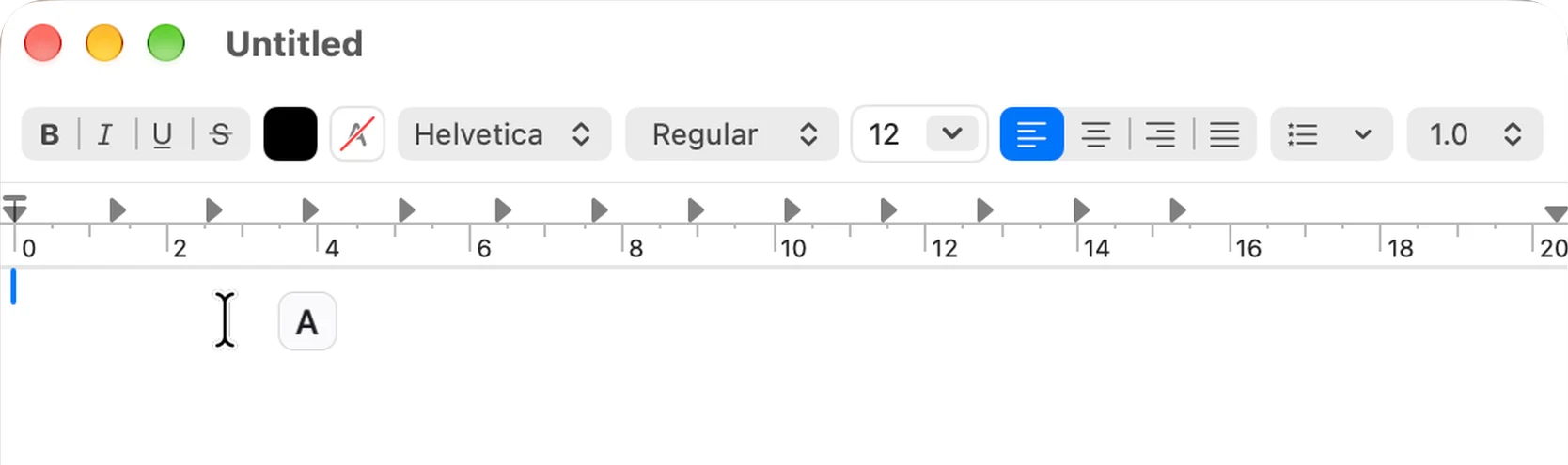
A TextEdit window with the Orca IM Tracker badge showing “A” right next to the text caret

Light by construction

0.00%
CPU while the pointer rests — no timers, no polling
0
permissions requested, so no permission prompts
0
network requests, ever
170 Hz
follow rate on a 170 Hz display — one update per frame

What it actually does

Seven behaviours, all of them local to your Mac.

Follows the pointer, smoothly

The badge is a pre-rendered bitmap moved by the GPU — a layer inside one static transparent window, never a window being dragged around. That single decision is why following the pointer costs a fraction of what a moving window would.

Hides itself while you type

When the pointer rests and a key is pressed, the badge fades out and comes back on the next pointer movement. The app asks macOS only when a key was last pressed — never which key.

Idle means invisible — and silent

After the pointer has been still for a moment (1 s by default, 0–10 s in half-second steps in Settings, where 0 means never) the badge next to the pointer fades out and everything goes quiet: no timer is left behind to wake the CPU.

Zero permissions

No Accessibility, no Input Monitoring, no Screen Recording. Every API used is public and needs no permission, so there is no prompt to explain to anyone.

Matches the system

The glyph is the same label the system's own input-source indicator uses, and the badge follows light and dark appearance on its own.

A menu-bar app, nothing more

No Dock icon and no windows unless you open Settings. Launch at login is a single switch.

A badge in the middle of the window you switch to

Switch to another app and a larger badge — 44 pt instead of 22 — appears in the centre of that app's window, so you know the input source before you type. It has its own display time (1 s by default, 0.5–10 s in Settings, no “never”), it never cancels the badge that follows the pointer, and both can be on screen at once. One window-geometry query per switch, no permission — and since macOS never says which window inside an app has focus, ⌘` between two windows of one app shows nothing.

Two screenshots, no mockups

This is the app running on a Mac: a close-up of the badge, and the whole Settings window.

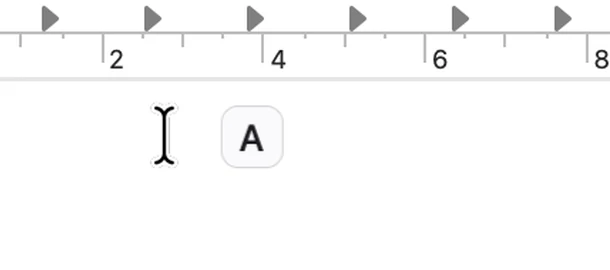
Close-up of the “A” badge sitting right next to the text caret in a document
The badge next to the caret — no glance at the menu bar, no broken sentence.
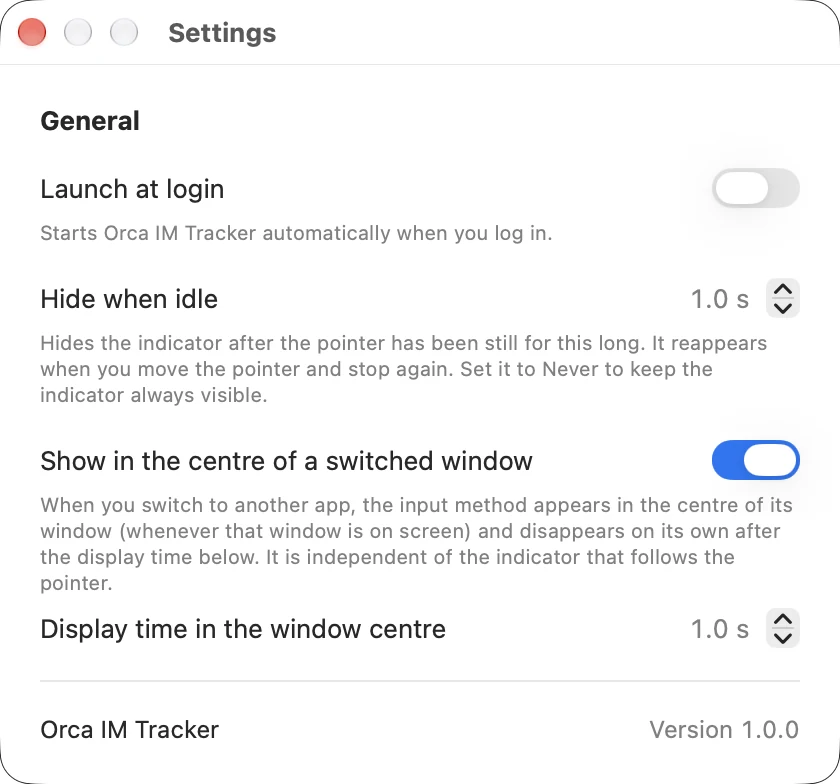
The Settings window with Launch at login, Hide when idle, and the window-centre badge controls
Settings holds three decisions: launch at login, how long the pointer rests before the badge hides, and whether a switched window gets a badge in its centre — with its own display time.

Measured, not estimated

CPU cost of the real build, measured on a MacBook Pro with an external 170 Hz display.

Measured, not estimated
Scenario CPU
Pointer idle, app inactive 0.00%
Pointer moving, ~31 events/s 1.28% total · 0.20% in our code
Following at 170 Hz with fades and skipped commits 0.03% net
Settings window open (app active) ≈ 0.5%

M3 Max, macOS 27.2, 170 Hz external display. The project README lists the full table, including the designs that were rejected for being heavier.

Questions worth asking

Does it need Accessibility or Input Monitoring permission?

No. It reads the current input source through the public Text Input Source API and mouse positions through a global event monitor, which macOS delivers without any permission prompt. It also listens for foreground-app switches and asks macOS for the on-screen rectangles of other windows — the same public, permission-free API surface.

Does it send anything anywhere?

Nothing. There is no network code in the app — no telemetry, no crash reporting, no update check, no account.

Does it work with third-party input methods?

Yes. It works with any input source macOS knows about. The glyph comes from the input method's own label, falling back to its name, so unusual or third-party IMEs still show something meaningful.

Which macOS versions does it run on?

macOS 14 or later. The app is a universal binary, so it runs natively on Apple silicon and on Intel Macs.

Does the badge in the middle of a window need Screen Recording?

No. macOS hands every app the geometry of on-screen windows without asking for permission — only window titles require Screen Recording, and this app never needs them. The trade-off is that the focused window inside an app is invisible to us, so ⌘` between two windows of the same app shows no badge; when an app has several windows, the front-most one is used.
Coming soon to the Mac App Store

Version 1.0.0 is built, signed and ready. The store listing needs a last few account-level steps, so this page will point at the App Store the moment it is live.

Coming soon on the Mac App Store macOS 14.0 or later · universal (Apple silicon + Intel)

Questions, or want to try a build earlier? Write to kefroth@outlook.com